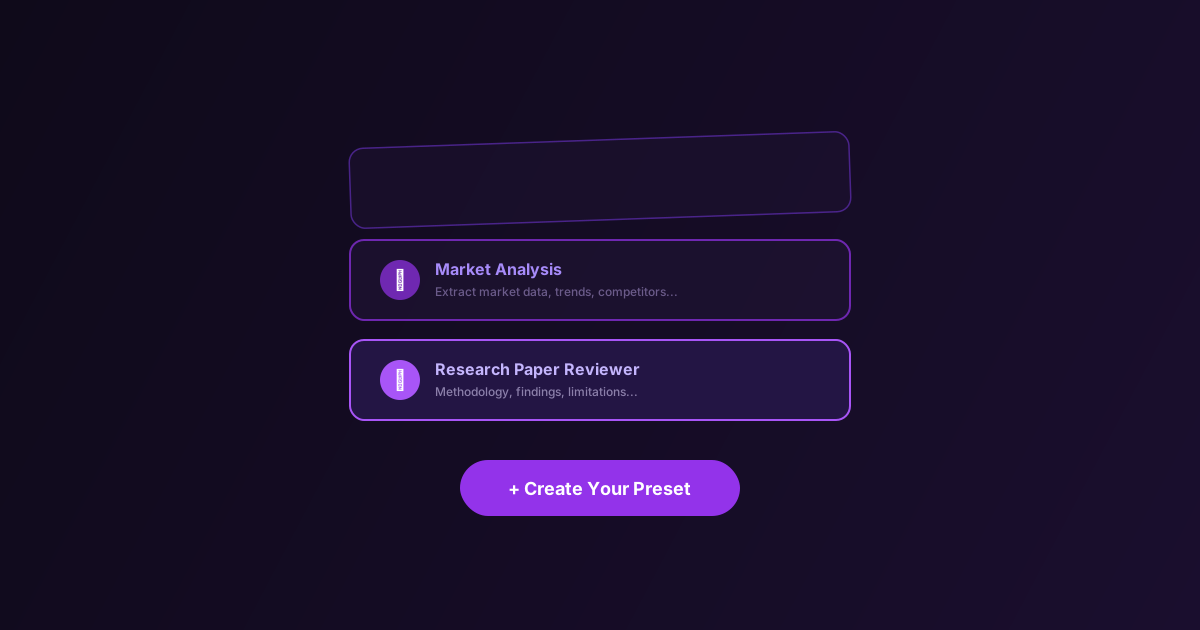
Custom Presets: The Power User Guide to AI Summarization
How to build, optimize, and share custom presets in 5MinRead — from prompt engineering basics to advanced workflows for developers, analysts, and researchers.
The 21 built-in presets in 5MinRead cover the most common use cases. Standard, Takeaways, Academic, ELI5 — they work well for general reading. But the moment your job requires you to extract specific information in a specific format, built-in presets start feeling like a shirt that almost fits.
Custom presets fix that. They let you tell the AI exactly what to look for, how to structure the output, and what to skip. The difference between a generic summary and a custom preset is the difference between asking a colleague to “summarize this” and asking them to “extract the pricing changes, list them chronologically, and flag anything that affects our margin.”
This guide covers everything from creating your first preset to advanced prompt engineering that makes your summaries genuinely useful.
What a Preset Actually Does
A preset is a system prompt — instructions that run before the AI processes any content. When you select the “Academic” preset and summarize a research paper, the AI is not doing something fundamentally different from the “Standard” preset. It is following different instructions about what to prioritize and how to format the output.
This means the quality of your preset is entirely determined by the quality of your instructions. Vague instructions produce vague summaries. Specific instructions produce structured, actionable output.
Creating Your First Custom Preset
The Basics
- Open the 5MinRead dashboard or extension
- Navigate to Presets
- Click Create Preset
- Fill in the fields:
- Name — Short, descriptive (you will see this in a dropdown)
- Description — What it is for (helps you remember months later)
- Icon — Visual identifier in the preset list
- Color — For visual distinction
- System Prompt — The actual instructions
Full walkthrough with screenshots in the Presets documentation.
The System Prompt Is Everything
The system prompt is where the magic happens. Here is what a mediocre prompt looks like:
Summarize the article and highlight key points.And here is what a well-engineered prompt looks like:
You are a financial analyst preparing a briefing for a portfolio manager.

Extract from this content:
1. **Market signals** — Any data points about market direction, volume, or sentiment
2. **Company-specific news** — Earnings, guidance, leadership changes, product launches
3. **Risk factors** — Regulatory changes, macro headwinds, competitive threats
4. **Actionable insight** — One sentence: what should we do with this information?

Rules:
- Use bullet points, not paragraphs
- Include specific numbers (percentages, dollar amounts, dates)
- If the article is opinion, flag it as "OPINION" at the top
- Skip generic market commentary that applies to everything
The second prompt produces output you can actually act on. The first produces output you have to re-read and filter yourself.
Prompt Engineering Principles for Presets
1. Define a Role
Start with who the AI is pretending to be. This anchors the perspective and level of detail:
- “You are a senior backend engineer reviewing a technical blog post”
- “You are a patent attorney analyzing a technology article”
- “You are a product manager extracting competitive intelligence”
The role determines what the AI considers important. A backend engineer cares about architecture decisions. A patent attorney cares about novel claims. Same article, completely different summaries.
2. Specify the Output Structure
Do not leave formatting to chance. Tell the AI exactly what sections you want:
Provide your analysis in this exact format:

## Key Findings
(3-5 bullet points)

## Data Points
(Any specific numbers, dates, or metrics mentioned)

## So What?
(One paragraph: why this matters and what to do about it)
The AI will follow your structure consistently across every article you summarize. This makes your summaries scannable and comparable.
3. Tell It What to Skip
Just as important as what to include is what to leave out:
- “Skip author bios, publication metadata, and promotional content”
- “Do not summarize the introduction — start with findings”
- “Ignore disclaimers and legal boilerplate”
This prevents the AI from wasting tokens on content you will never read.
4. Set a Tone
Match the output to how you will use it:
- “Write in the tone of a Slack message to your team” — casual, direct
- “Write as a professional briefing document” — formal, structured
- “Write as study notes for personal use” — abbreviated, with mnemonics
5. Add Conditional Logic
Presets can handle different content types if you give them rules:
If the content is a news article: extract facts, dates, and quotes.
If the content is an opinion piece: identify the thesis, supporting arguments, and counterarguments.
If the content is a tutorial: list the steps, tools required, and common pitfalls.
The AI will detect the content type and adjust its output accordingly.
Real-World Preset Examples
For Developers: “PR Review Digest”
You are a staff engineer reviewing a technical article or changelog.

Extract:
1. **Breaking changes** — anything that requires migration or code changes
2. **New APIs or features** — with brief description of what they enable
3. **Deprecations** — what is being removed and by when
4. **Performance implications** — any mentions of speed, memory, or scalability changes
5. **Migration steps** — if any, list them in order

Format as a concise changelog. Use code formatting for API names and commands.
If this is not a technical document, say "Not applicable — this is not a technical changelog."
For Analysts: “Earnings Call Breakdown”
You are a financial analyst processing an earnings call transcript or summary.

Extract in this exact format:

**Revenue:** [number] ([growth %] YoY)
**Guidance:** [next quarter/year guidance if mentioned]
**Key metric changes:** [3-5 bullet points]
**Management tone:** [Confident / Cautious / Defensive / Evasive]
**Red flags:** [anything management downplayed or avoided]
**Bull case:** [one sentence]
**Bear case:** [one sentence]

If specific numbers are not available, write "Not mentioned" rather than guessing.
For Recruiters: “Candidate Profile Extractor”
Extract from this professional profile or article:
1. **Current role and company**
2. **Key skills** (technical and soft)
3. **Career trajectory** (where they've been, where they seem to be heading)
4. **Notable achievements** (with metrics if available)
5. **Red flags or gaps** (frequent job changes, vague descriptions, missing details)

Be objective. Do not editorialize.
For Students: “Exam Prep Condenser”
Transform this content into exam-ready study material:

1. **Core concepts** — Define each key term in one sentence
2. **Relationships** — How do these concepts connect to each other?
3. **Common exam questions** — 3 questions a professor would likely ask about this material
4. **Memory aids** — Suggest mnemonics or analogies for complex ideas
5. **What most students get wrong** — Common misconceptions about this topic
Optimizing Your Presets
Test With Different Content Types
A preset that works brilliantly for news articles might fall apart on academic papers. Test your preset with at least 3-5 different pieces of content and refine the prompt based on where it underperforms.
Keep Prompts Under 300 Words
The system prompt consumes tokens from your output budget. A 500-word prompt leaves less room for the actual summary. Keep instructions precise and avoid repetition.
Use the Summary Length Setting
Combine your preset with the summary length selector:
- Short (~250 words) — Quick triage
- Medium (~350 words) — Standard reading
- Full (~450 words) — Comprehensive analysis
- Maximum — No word limit (Max plan)
Your preset controls what is extracted. The length setting controls how much detail.
Iterate Based on Output
After every summary, ask yourself:
- Did I get information I did not need? → Add a “skip” instruction
- Was something important missing? → Add it to the extraction list
- Was the format hard to scan? → Specify a clearer structure
The best presets are the result of 5-10 iterations, not a single attempt.
Sharing Your Presets on the Marketplace
If you have built a preset that works well, consider sharing it with the community.
- Open your preset settings
- Click Publish to Marketplace
- Add a description, select a language, and add tags
- Submit for review (usually approved within 24-48 hours)
Other users can then install your preset with one click. See the Marketplace documentation for details.
You can also browse existing presets in the Marketplace. There are 25+ curated presets for specialized use cases — from legal document analysis to social media content extraction.
Tips From Power Users
-
Name presets by output, not input. “Actionable Insights” is better than “Article Analyzer” because it tells you what you are getting.
-
Create presets for recurring tasks. If you read competitor blogs weekly, make a preset. If you review security advisories, make a preset. The time investment is 5 minutes; the time savings are infinite.
-
Use presets with text selection. You do not always need to summarize the whole page. Select a specific section — a methods paragraph, a pricing table, a code block — and run your preset on just that selection.
-
Combine with Chat. After your preset generates a structured breakdown, switch to the Ask tab and drill deeper into specific points. The AI retains context from the original content.
-
Build a preset library for your team. If multiple people on your team read the same type of content, standardize on shared presets via the Marketplace. Everyone gets consistent output.
The Bottom Line
Built-in presets are a starting point. Custom presets are where 5MinRead becomes genuinely personal — an AI reading assistant that extracts exactly the information you need, in exactly the format you use it.
The investment is 5 minutes per preset. The return is every future interaction producing precisely the output you want.
Start with one preset for your most common reading task. Refine it over a week. Then build your next one. Within a month, you will have a personalized analysis toolkit that makes you measurably faster at processing information.